


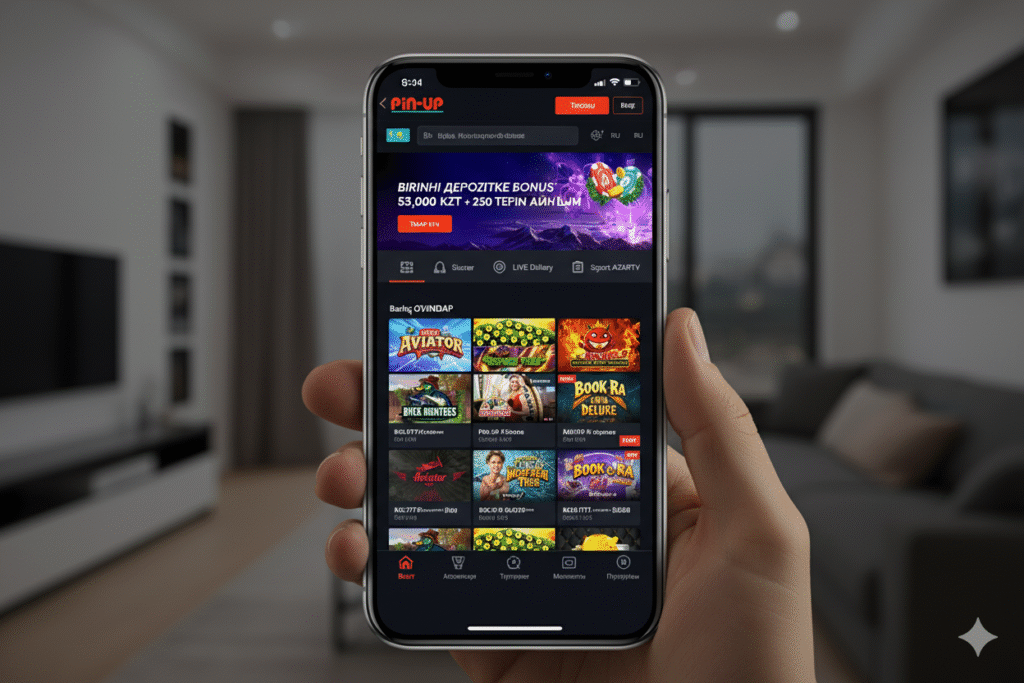
Pin-Up KZ platform provides Apple device users with the ability to gain full access to gaming services through specially adapted solutions for iOS. Due to the App Store’s policy that prohibits the listing of real-money gambling applications in most regions, access to the platform on iPhone and iPad is achieved through alternative methods: installation via an enterprise certificate or the use of a Progressive Web App (PWA). This material provides comprehensive information on all available methods for installing pin up iOS, system requirements for Apple devices, step-by-step instructions, and solutions to typical technical issues.
Both access methods ensure the platform’s full functionality—more than 3,500 slots, live casino with real-time broadcasts, sports betting, bonus management, and financial operations. The interface is optimized for the Apple ecosystem with support for iOS gestures, adaptation to the screen sizes of iPhones (from SE to Pro Max) and iPads (from mini to Pro). The application operates under Curaçao license No. 8048/JAZ and uses security protocols identical to the web version. Regular updates ensure compatibility with new iOS versions and the addition of user-requested features.
System Requirements for Apple Devices
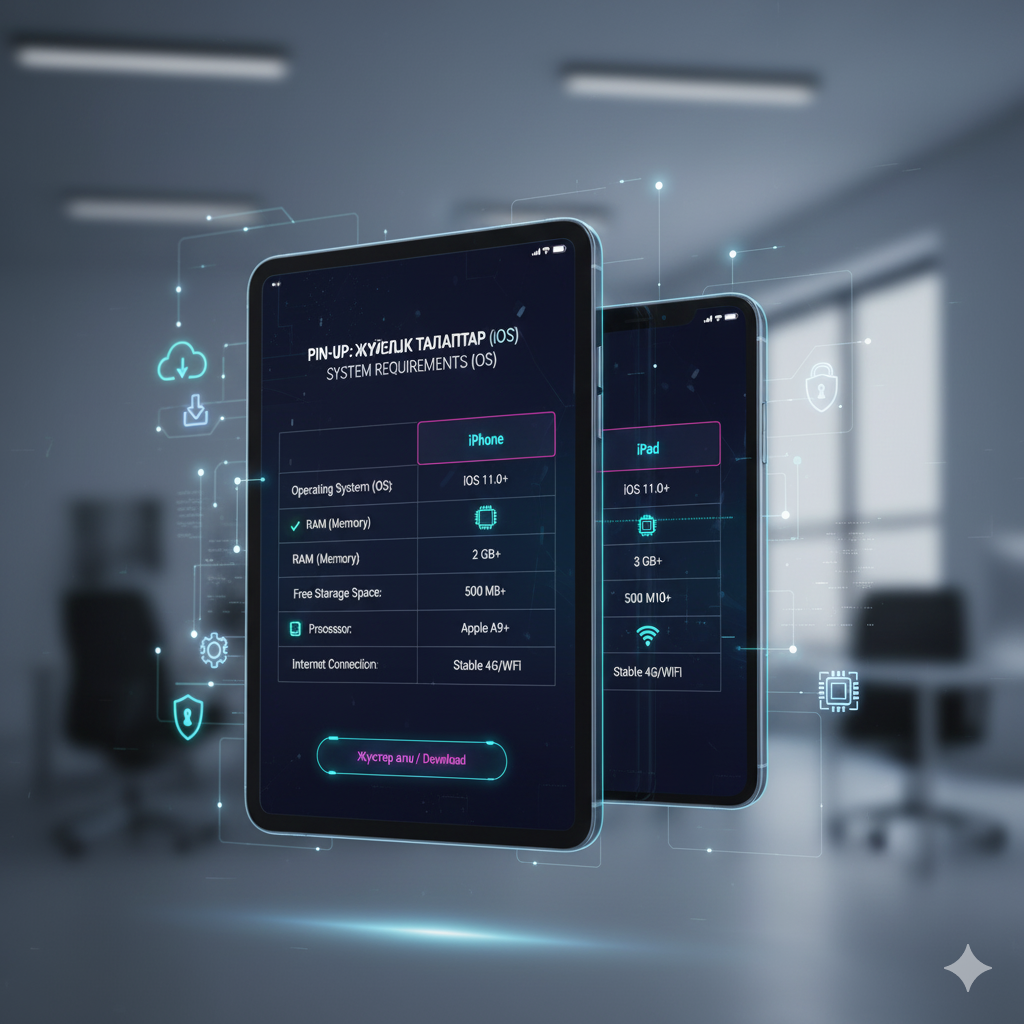
Before starting the installation, you must ensure that your device meets the minimum technical requirements for stable application performance.
Compatibility with iOS Versions
Operating system requirements:
| iOS Version | Support Status | Features |
|---|---|---|
| iOS 11.0 – 12.x | Minimum Support | Basic functionality, possible performance limitations |
| iOS 13.0 – 14.x | Full Support | All features available, stable operation |
| iOS 15.0 – 16.x | Recommended Versions | Optimal performance, all new features |
| iOS 17.0 and higher | Full Support | Maximum optimization, newest APIs |
Compatible Device Models
List of iPhones and iPads with confirmed compatibility:
iPhone:
- iPhone 6s, 6s Plus, SE (1st generation) — minimum models
- iPhone 7, 7 Plus, 8, 8 Plus, X — full support
- iPhone XR, XS, XS Max, 11, 11 Pro, 11 Pro Max — recommended
- iPhone 12, 12 mini, 12 Pro, 12 Pro Max, SE (2nd and 3rd generation)
- iPhone 13, 13 mini, 13 Pro, 13 Pro Max
- iPhone 14, 14 Plus, 14 Pro, 14 Pro Max
- iPhone 15, 15 Plus, 15 Pro, 15 Pro Max — newest models
iPad:
- iPad (5th generation and newer)
- iPad mini 4 and newer
- iPad Air 2 and newer
- iPad Pro (all models with iOS 11+)
Memory and Performance Requirements
Technical parameters for comfortable use:
| Parameter | Minimum | Recommended |
|---|---|---|
| Free Space | 100 MB | 300 MB |
| RAM | 1 GB | 2 GB or more |
| Internet Connection | 3G (1 Mbit/s) | 4G/Wi-Fi (from 5 Mbit/s) |
| Processor | A9 (iPhone 6s) | A12 Bionic and newer |
To check your device’s specifications: Settings → General → About. This displays the model, iOS version, available space, and other parameters.
Method 1: Installation via Enterprise Certificate
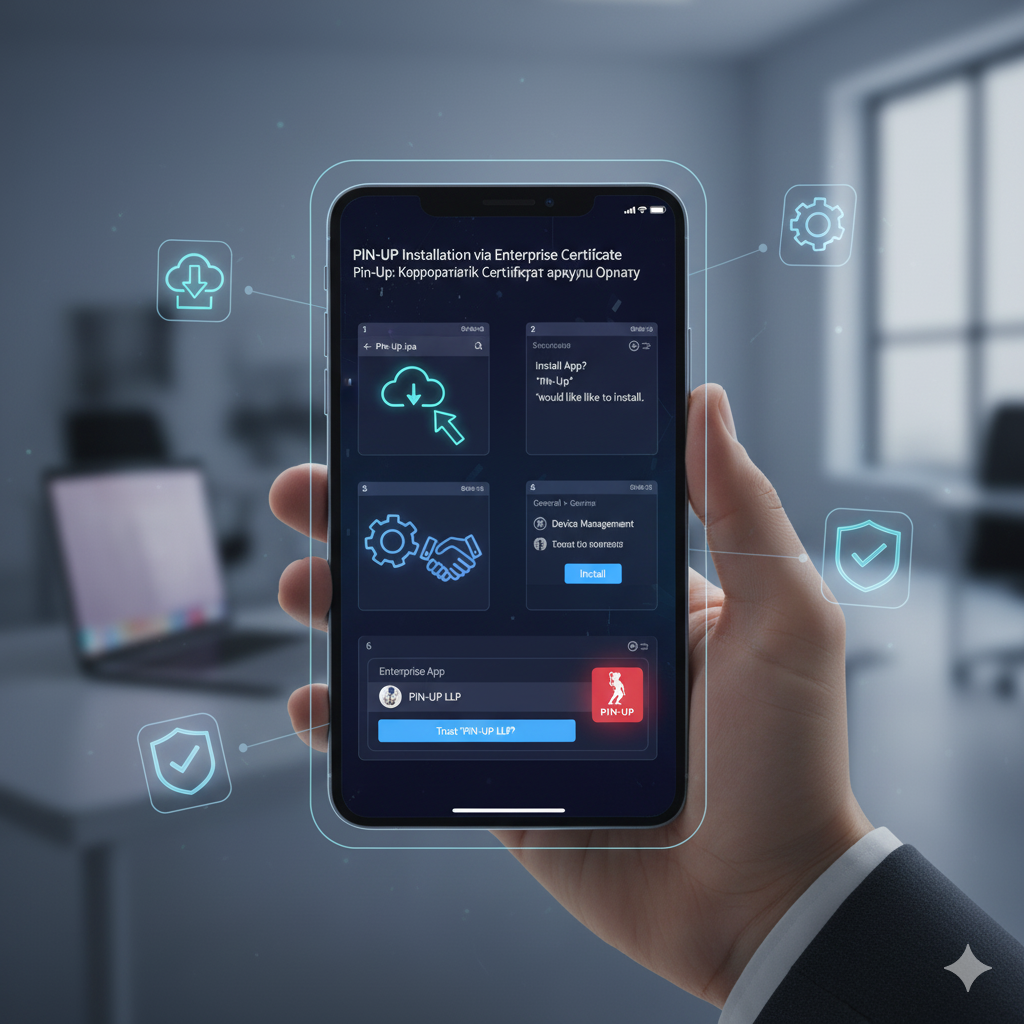
The first method for installing pin-up iPhone involves downloading the application via an enterprise developer profile, which bypasses App Store restrictions.
Step-by-Step Installation Guide
The detailed process for downloading and activating the application:
- Open the Safari browser on your iPhone or iPad (it is important to use Safari, as other browsers do not support profile installation)
- Enter the official address in the address bar: pin-up.kz
- Ensure the lock icon is present in the address bar, confirming a secure connection
- On the homepage, find the “Mobile Application” section or a banner offering to download for iOS
- Tap the “Download for iOS” button or the icon with the Apple logo
- The system will redirect to the enterprise profile download page
- A pop-up window will appear with a warning about downloading the configuration profile
- Tap “Allow” to continue the download
- After the download is complete, tap “Close”
- Open the “Settings” app on iOS
- A new item, “Profile Downloaded,” will appear at the top of the menu — tap it
- Alternative path: Settings → General → Profiles & Device Management (or VPN & Device Management)
- Find the Pin-Up KZ profile in the list of available profiles
- Tap the profile name to open the detailed information
- Tap the “Install” button in the top right corner
- Enter your iPhone/iPad passcode when prompted by the system
- Read the profile warning and tap “Install” again
- Confirm the installation with a third tap of “Install” in the pop-up window
- Tap “Done” when complete
- Return to the Home Screen — the Pin-Up icon will appear among other apps
Resolving the “Untrusted Enterprise Developer” Error
When launching the application for the first time, iOS may display a warning about an untrusted developer. How to fix the issue:
- Close the error window by tapping “Cancel”
- Open “Settings” on iOS
- Go to “General” → “Device Management” (or “VPN & Device Management”)
- In the “Enterprise App” section, find the Pin-Up profile
- Tap the developer’s name
- Tap the blue “Trust “[Developer Name]”” button
- Confirm the action by tapping “Trust” in the dialog box
- Return to the Home Screen and launch the app again
After performing these steps, the application will launch without errors. The trust procedure only needs to be performed once.
Features of Enterprise Certificates
Important information about the installation method:
- The enterprise certificate has a limited validity period (usually 1 year)
- Upon expiration, the application will stop launching until the certificate is renewed
- The platform automatically renews certificates — users receive notifications about the need for reinstallation
- The certificate renewal process is identical to the initial installation
- Account data is stored on the server, so everything is restored upon login after reinstallation
Method 2: Progressive Web App (PWA)
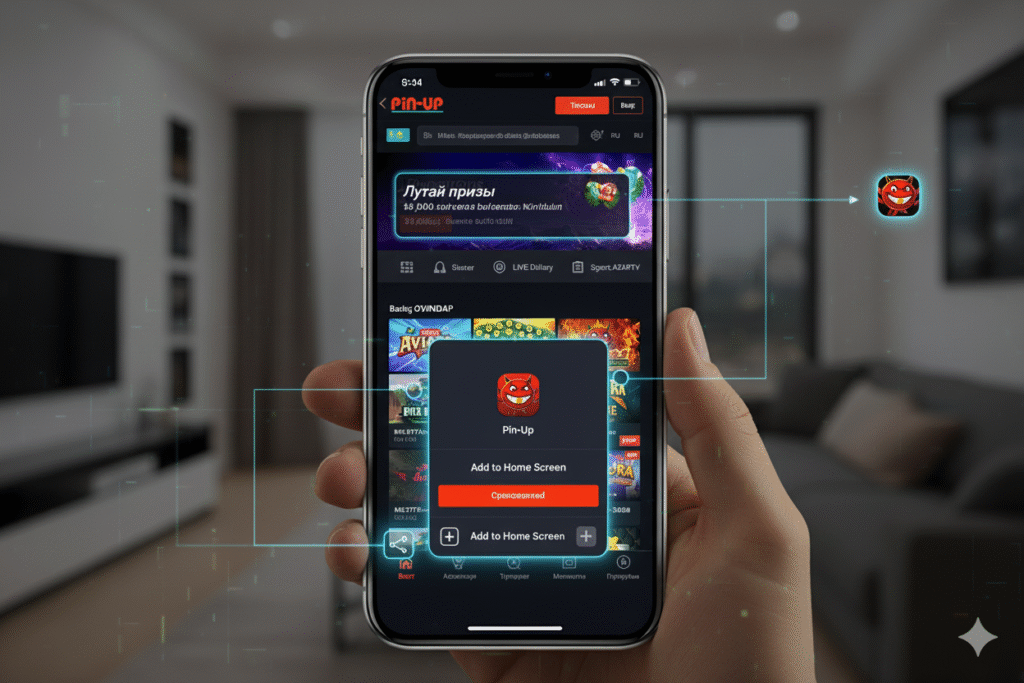
The second access method is creating a PWA shortcut on the iOS Home Screen, which functions as a full-fledged application without the need for profile installation.
Installing the PWA to the Home Screen
The simple process of creating a web application:
- Open Safari on your iPhone or iPad
- Navigate to the website pin-up.kz
- Wait for the homepage to load completely
- Tap the “Share” button at the bottom of the screen (square with an upward arrow)
- In the opened menu, scroll down the list of options
- Find and tap “Add to Home Screen”
- The system will prompt you to enter a name for the shortcut
- Leave the suggested name “Pin-Up KZ” or enter your own
- Tap “Add” in the top right corner
- The icon will appear on the Home Screen alongside other applications
Advantages of the PWA Version
Features of the Progressive Web App:
- No profile installation required — no issues with certificates or developer trust
- Automatic updates — the latest version is loaded from the server with every launch
- Lower memory usage — does not take up space on the device; cache is managed by the browser
- Full-screen mode — launches in a separate window without the Safari address bar
- Quick access — one tap of the icon on the Home Screen
PWA Limitations Compared to the Native App
Functional differences of the web application:
- Push notifications work limitedly (full support only from iOS 16.4+)
- No biometric authentication via Face ID/Touch ID (uses Safari Autofill)
- No offline functions — requires a constant internet connection
- Slightly higher data consumption compared to the native application
- Limited integration with native iOS system functions
Despite the limitations, PWA provides access to all games, sports betting, financial operations, and bonuses with performance virtually identical to the native application.
Comparison of Installation Methods for iOS
A detailed comparison of the two available access methods helps determine the best option based on individual preferences.
| Parameter | Enterprise Certificate | PWA |
|---|---|---|
| Installation Difficulty | Medium (requires trusting the profile) | Easy (2-3 steps) |
| Installation Time | 3-5 minutes | 30-60 seconds |
| Space Required | 80-100 MB | Minimal (browser cache) |
| Push Notifications | Full support | Limited (iOS 16.4+) |
| Biometrics | Face ID, Touch ID | Via Safari Autofill |
| Offline Functions | Partially available | Absent |
| Updates | Manual upon certificate expiration | Automatic |
| Performance | Maximum | High |
| Stability | Depends on certificate validity | Stable |
| Data Consumption | Lower by 25-30% | Standard |
Recommendation based on choice:
- Enterprise Certificate — for active users who value maximum performance and a full set of features
- PWA — for those who prefer simplicity of installation, automatic updates, and don’t want to deal with certificates
Functional Capabilities on iOS
Regardless of the chosen installation method, users gain access to the platform’s full functionality, optimized for the Apple ecosystem.
Gaming Content
Available entertainment in pin up iOS:
- Slots — more than 3,500 slot machines from providers like Pragmatic Play, NetEnt, Microgaming, Play’n GO, Evolution Gaming, Yggdrasil
- Live Casino — tables with live dealers in HD quality: Roulette, Blackjack, Baccarat, Poker, Crazy Time, Monopoly Live
- Table Games — classic versions of Roulette, Blackjack, Poker without live broadcasts
- Jackpot Slots — games with progressive jackpots and cumulative prize pools
- Tournaments — weekly competitions with leaderboards and cash prizes
Sports Betting
Betting features on Apple devices:
- Event line with more than 30 sports: Football, Tennis, Basketball, Hockey, Volleyball, eSports
- Live Betting with real-time odds updates
- Extended market spread: outcomes, totals, handicaps, statistical indicators
- Express Bet Builder with automatic win calculation
- Statistics and analytics for informed decisions
- Match broadcasts (for verified users with a balance)
Financial Operations
Managing funds on iOS:
- Deposits via bank cards (Visa, MasterCard), electronic wallets (Qiwi, WebMoney), cryptocurrencies (Bitcoin, Ethereum, Tether)
- Withdrawal of winnings to the same methods used for deposits
- Transaction history with filtering by type, date, and status
- Real-time tracking of withdrawal requests
- Currency conversion at current exchange rates
Bonus System
Managing promotions:
- Activation of promo codes and viewing available promotions
- Monitoring wagering progress with visualization
- Detailed information on the conditions of each bonus
- History of accrued and used bonuses
- Notifications about new exclusive offers
iOS Integration
Adaptation to the Apple ecosystem:
- Support for iOS gestures (swipe back, zooming)
- Adaptation to the notches and Dynamic Island of newer iPhones
- Dark Theme with automatic switching according to the iOS schedule
- Password Autofill via iCloud Keychain
- Optimization for Split View and Slide Over on iPad
- Support for Apple Pencil for navigation on iPad
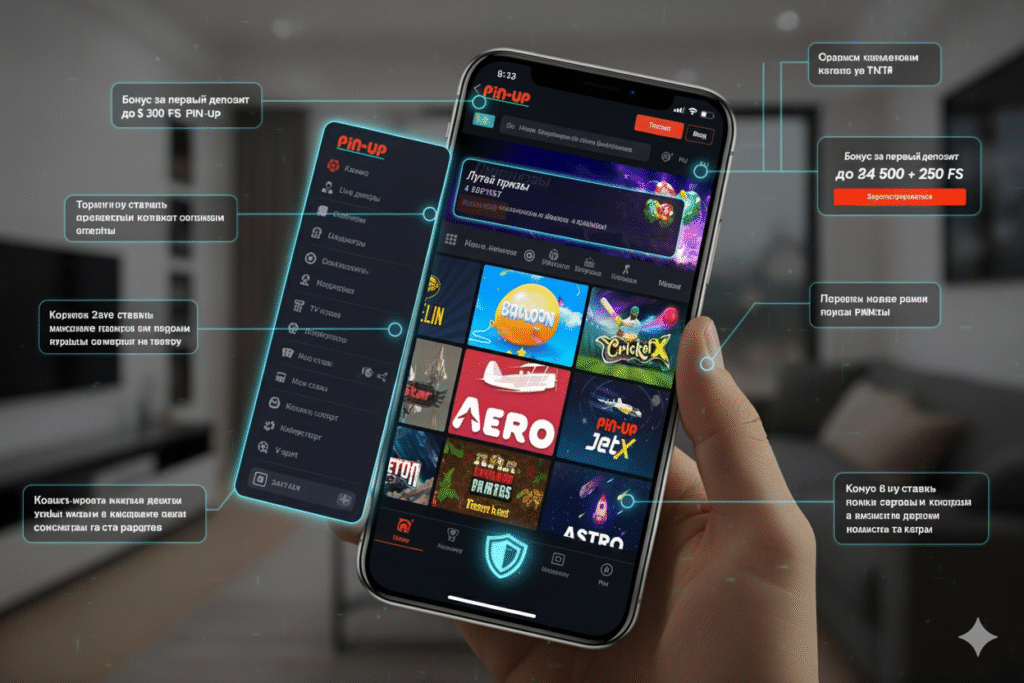
Troubleshooting Typical Issues on iOS
Analysis of user inquiries from iPhone and iPad reveals recurring technical difficulties with effective ways to resolve them.
Profile is not installing
Resolving issues with downloading the enterprise certificate:
- Use Safari only — other browsers (Chrome, Firefox, Opera) do not support profile installation on iOS
- Check the internet connection — switch to stable Wi-Fi instead of mobile data
- Delete old profiles — Settings → General → Profiles → Delete unused enterprise profiles
- Check restrictions — Settings → Screen Time → Content & Privacy Restrictions → Profiles → Ensure it is set to “Allow”
- Update iOS — outdated versions may have issues with modern certificates
- Restart the device — a simple restart resolves most temporary glitches
App does not launch (white screen)
Troubleshooting display issues:
- Completely close the application via the app switcher (swipe up from the bottom edge)
- Wait 5-10 seconds and open it again
- Check the developer trust in the device management settings
- Clear Safari cache: Settings → Safari → Clear History and Website Data
- Ensure a stable internet connection
- Check for iOS updates: Settings → General → Software Update
- Reinstall the application by deleting the profile and installing it again
Certificate Expired
Actions when the corporate certificate expires:
- Delete the current profile: Settings → General → Profiles → Pin-Up → Delete Profile
- Go to pin-up.kz via Safari
- Download and install the updated profile according to the standard instructions
- Log in to your account — all data will be restored automatically
The platform usually sends push notifications 7-10 days before the certificate expires with renewal instructions.
PWA is not adding to the Home Screen
Troubleshooting the Progressive Web App:
- Ensure you are using Safari, not another browser
- Check the iOS version — PWA is fully supported from iOS 11.3+
- Ensure you are on the pin-up.kz homepage, not an internal page
- Check that there is free space on the Home Screen for the new icon
- Try clearing the Safari cache and repeating the process
- Restart the device and try again
Slow performance or freezing
Performance optimization:
- Close background applications to free up RAM
- Switch from mobile internet to Wi-Fi
- Check available space: Settings → General → iPhone Storage — free up at least 1-2 GB
- Disable background app refresh: Settings → General → Background App Refresh
- Ensure the device is not overheated — allow it to cool for 10-15 minutes
- Update iOS to the latest available version
- Reinstall the application to reset the cache and temporary files
Payment Issues
Troubleshooting errors during financial operations:
- Deposit is not credited — wait 5-10 minutes, check transaction history, contact support with the payment number
- Withdrawal error — complete account verification, cancel the active bonus, or complete wagering requirements
- Apple Pay is not working — ensure the card is added to Wallet and active, check bank limits
- Payment rejection — contact the card-issuing bank to lift the block on transactions to gaming platforms
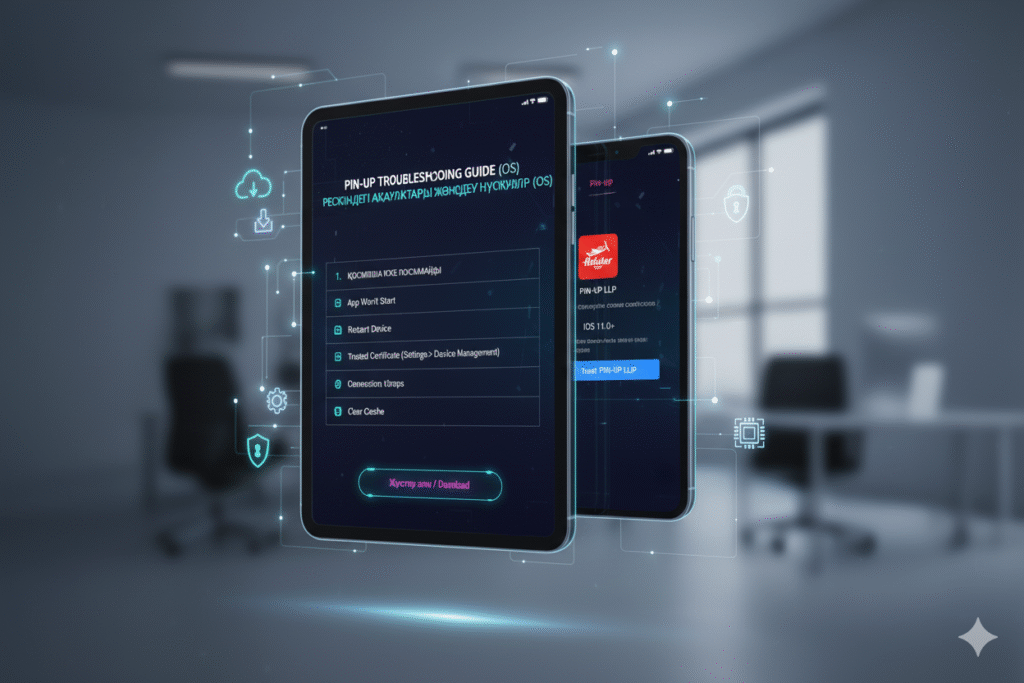
Security and Privacy on iOS
The platform uses multi-layered protection protocols for iOS user data, compliant with license requirements and Apple’s ecosystem security standards.
Encryption Technologies
Data protection mechanisms on Apple devices:
- TLS 1.3 — modern encryption protocol for all traffic between the app and servers
- AES-256 — encryption of local data using the Secure Enclave on iPhone
- Certificate Pinning — protection against man-in-the-middle attacks
- Password Hashing — using bcrypt to protect credentials
Integration with iOS Security System
Utilization of built-in Apple mechanisms:
- Password storage in iCloud Keychain with end-to-end encryption
- Biometric authentication via Face ID or Touch ID (in the corporate version)
- Sandbox isolation of the application from other programs on the device
- Use of the Secure Enclave for storing critical data
- Automatic lockout after prolonged inactivity
Permissions and Data Access
The application requests only necessary iOS permissions:
| Permission | Purpose | Mandatory |
|---|---|---|
| Internet | Connection to servers | Mandatory |
| Notifications | Push notifications | Optional |
| Camera | QR codes for payments | Optional |
| Face ID/Touch ID | Biometric login | Optional |
The application does not request access to contacts, photos, location, microphone, or other confidential data unrelated to its functionality.
Optimization for Various iPhone Models
The application interface adapts to the specific characteristics of each iPhone model to ensure an optimal user experience.
Adaptation to Screen Sizes
Support for various display diagonals:
- iPhone SE (4.7″) — compact interface with enlarged buttons for convenience
- iPhone 12/13 mini (5.4″) — optimization of elements for the narrow screen
- iPhone 12/13/14 (6.1″) — standard interface with a balance of information and convenience
- iPhone Plus/Max (6.7″) — expanded display of information, additional elements
- iPad (from 7.9″ to 12.9″) — multi-column layout with side panels
Support for Modern iPhone Features
Integration with the latest capabilities:
- Dynamic Island (iPhone 14 Pro/15 Pro) — interface adaptation to the interactive area
- Always-On Display (iPhone 14 Pro+) — optimized saving mode for the constantly active display
- ProMotion 120Hz — utilization of increased frequency for smooth animation
- Haptic Engine — tactile feedback for important actions
- 5G — content loading optimization for high-speed connection
Battery Optimization
Energy efficiency on iOS:
- Adaptive graphics quality depending on the charge level
- Reduced data refresh rate in low-power mode
- Optimized background operation
- Automatic dimming of interface elements
- Average battery consumption: 15-20% per hour of active use
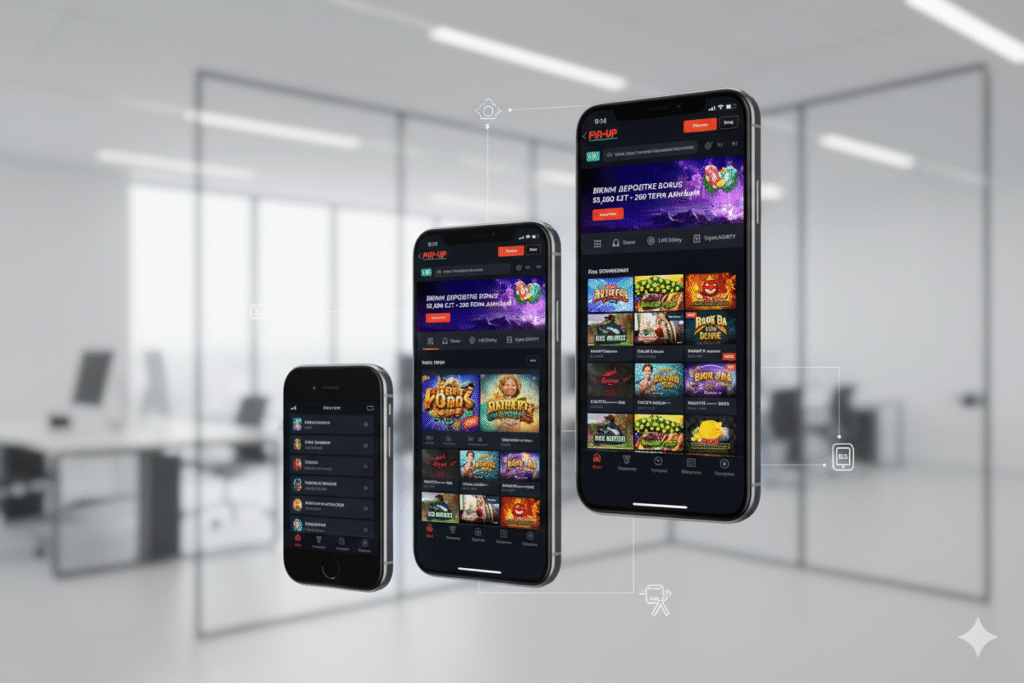
Comparison with the Android Version
An objective comparison of the mobile applications for the two operating systems helps understand the specifics of each platform.
| Parameter | iOS Version | Android Version |
|---|---|---|
| Installation Method | Enterprise Certificate / PWA | APK file |
| Installation Difficulty | Medium | Easy |
| App Size | 80-100 MB | 60-80 MB |
| Operating Speed | Maximum (hardware optimization) | High (device-dependent) |
| Push Notifications | Full support (corp. certificate) | Full support |
| Biometrics | Face ID, Touch ID | Fingerprint, face recognition |
| Updates | Upon certificate expiration | Manually via APK |
| Stability | Maximum | High |
| System Integration | Deep (Keychain, Wallet) | Standard |
| OS Requirements | iOS 11.0+ | Android 5.0+ |
Both versions provide identical functionality and access to the full game catalog. The choice depends on the operating system used and personal preferences.
Frequently Asked Questions About iOS Installation
Why is the app not available on the App Store?
The App Store policy prohibits the placement of online casino and bookmaker applications for most regions, including Kazakhstan. This Apple restriction applies to all real-money gambling platforms. Distribution via corporate certificates or PWA is standard practice in the industry and is used by all major operators. These methods provide the same level of security and functionality as applications from the official store.
Is it safe to install the app via a corporate profile?
Yes, installation via the corporate certificate from the official pin-up.kz website is completely safe. The profile is signed with a digital certificate from the Apple Developer Enterprise Program, which is only issued after company verification. The application uses the same encryption and data protection protocols as apps from the App Store. It is crucial to download the profile exclusively from the official domain, not from third-party sites or suspicious links.
Which is better to choose: corporate certificate or PWA?
The choice depends on priorities. The corporate certificate provides maximum performance, full support for push notifications and biometric authentication, and offline features. PWA is simpler to install, updates automatically, and does not require periodic reinstallation when the certificate expires. The corporate certificate is recommended for regular active players. PWA is optimal for occasional access or testing the platform.
Can the application be used on an iPad?
Yes, the application is fully compatible with all iPad models starting from the iPad mini 4 and 5th generation iPad with iOS 11.0 and higher. The interface automatically adapts to the tablet screen size, utilizing a multi-column layout and additional navigation elements. All the same features available on the iPhone are accessible on the iPad. Thanks to the larger display, some sections (live casino, sports broadcasts) become even more convenient.
Does the application work on jailbroken devices?
The application may work on jailbroken devices; however, some security features may be limited. The platform employs mechanisms to identify modified devices to prevent fraud. In some cases, if jailbreak is detected, additional account verification or restriction of certain operations may be required. For an optimal experience, use the app on devices without system modifications.
Will data be saved upon reinstallation?
All critical data — balance, betting history, personal information, bonus settings — are stored on the platform’s servers, not locally on the iPhone or iPad. When deleting and reinstalling the application, you only need to log in to your account with the same credentials, and all information will automatically sync from the server. Only the cache and interface settings (theme, language) are deleted locally, which are quickly restored.
Why does the “Untrusted Developer” error appear upon launch?
This is a standard iOS warning for applications installed via a corporate profile. The error does not indicate a security issue — it is an Apple protection mechanism to inform users about the non-standard installation method. To resolve it, you must manually trust the developer once in the device management settings. After this, the application will launch without warnings.
Can data be synced between iPhone and iPad?
Yes, a single account works on all devices simultaneously. All data is automatically synced through the platform’s servers: balance, betting history, active bonuses, settings. You can start playing on an iPhone, continue on an iPad, and complete the session on a computer via the web version. The same game cannot be launched simultaneously on two devices — when opened on the second device, the session on the first will close automatically.
Does the application consume a lot of data?
The application is optimized for mobile data saving. Average consumption during active gameplay is 50-80 MB per hour for slots and 120-180 MB per hour for live casino with video broadcasts. The first launch via Wi-Fi downloads the main resources to the cache, after which consumption significantly decreases. For minimum data consumption, video quality can be adjusted in the live section (low, medium, high).
Is there a charge for installation or use?
No, downloading, installation, and use of the application are completely free. The platform does not charge fees for app access, registration, verification, or basic features. The user incurs costs only when deciding to make deposits for real-money gaming. Possible fees may be charged by payment systems for financial transactions, but the platform itself does not take additional charges for mobile access.
Conclusion
Pin-Up for iPhone (iOS) in Kazakhstan represents a fully functional solution for accessing the gaming platform from Apple mobile devices. The two available installation methods—via corporate certificate and PWA—provide flexibility of choice depending on individual preferences and the user’s technical level. The corporate certificate offers maximum performance and a full suite of features, including push notifications and biometric authentication. PWA ensures ease of installation and automatic updates without the need for certificate management.
The application is optimized for the Apple ecosystem with deep integration of built-in iOS services: iCloud Keychain, Face ID/Touch ID, adaptive interface for all models from iPhone SE to iPhone 15 Pro Max and iPad from mini to Pro. Multi-layered security protocols using TLS 1.3, AES-256 encryption, and Secure Enclave ensure the protection of personal and financial data at the level of international standards. Regular updates guarantee compatibility with the newest iOS versions and the addition of user-requested features.
Detailed instructions for installing both methods, solutions to typical problems, and performance optimization recommendations enable users of all technical skill levels to successfully set up platform access. Comparative tables help in making an informed decision about the installation method. Adaptation to the local market of Kazakhstan includes support for the tenge, integration with local payment systems, and an interface in the Kazakh language.
Install Pin-Up on your iPhone or iPad today — go to pin-up.kz via Safari, select the preferred installation method, and follow the step-by-step instructions in this guide. After setup, log in to an existing account or create a new one to receive a welcome bonus of up to 125,000 tenge and access over 3,500 games, live casino, and sports betting in an optimized format for Apple devices.